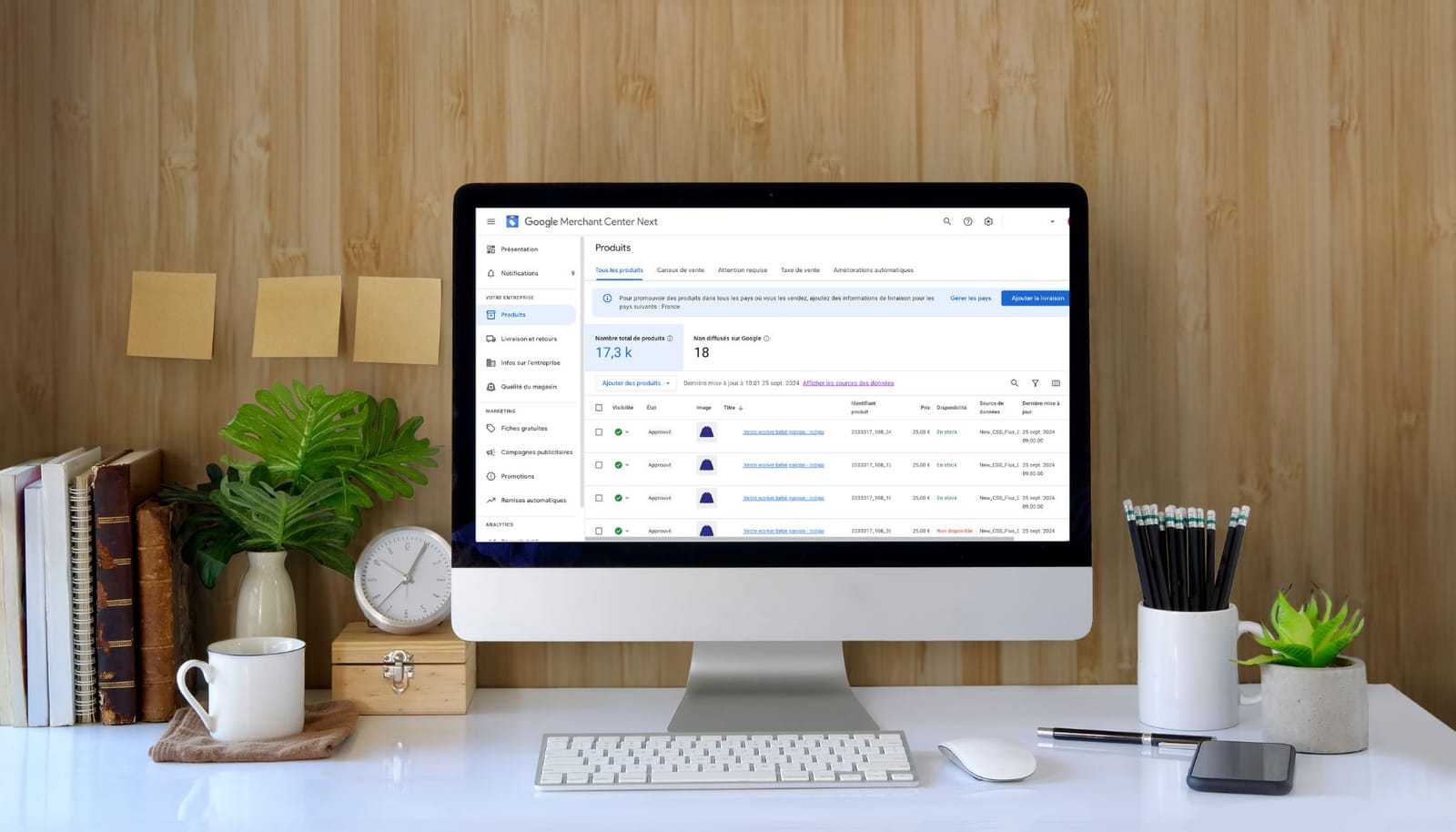
Put your product catalog on Google Shopping can feel like an epic adventure, much like trying to assemble an Ikea shelf without instructions.
But don’t panic!
With a good plan in 10 simple steps (and a bit of patience), you will be able to Expose your products in the Google spotlight in no time.
Follow these steps to turn your products into best sellers on the web! 🌟
Step 1: Create a Google Merchant Center account
Create a Google Merchant Center account is the crucial first step in selling products online through Google Shopping.
But why is it so important? 🤔
Simply put, because without this account, you can’t publish your products on Google Shopping.
As a bonus, it offers a multitude of options for make your items more visible and also to monitor their performance.
Clearly, GMC is the essential tool for any e-merchant who wants to propel their products into the spotlight!

Step 2: Fill in your GMC account
You have just created your account Google Merchant Center ?
Now is the time to fill in information on Google Merchant Center who will ensure an effective presence on Google Shopping 😅
1. Access the registration page by going to Google Merchant Center. Then, click on “Getting Started.”
2. Fill in the your business information : name, physical address or website. As with a presentation sheet, the information must be simple, clear and understandable! 😎
3. Select how sell your products : Generally, we want our customers to be redirected to our online store after clicking on the items on Google Shopping. In this case, check the “On my site” option.
4. Set up your email preferences : choose to receive email notifications to stay up to date on new features. So get tips for optimizing Google Max Shopping Performance.
5. Finalize it creating your account : Once everything is in place, click on “Create an account”.
Congratulations, you have just laid the first stone of your e-commerce empire on Google Shopping! 🎉
Step 3: Choose the format of the feed
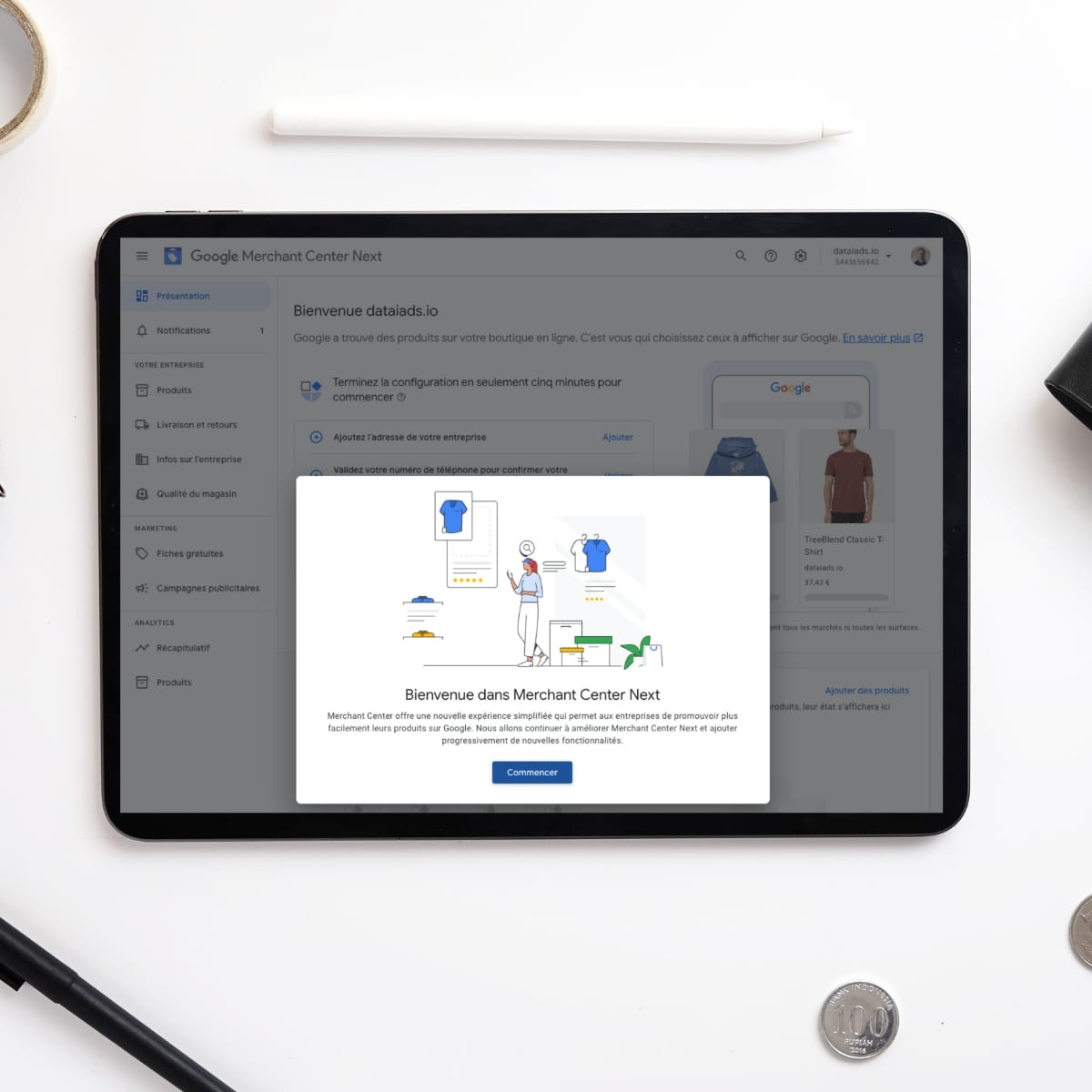
Your Google Shopping product feed should be under a format compatible with GMC : XML, CSV, or TXT.
Each item must be accompanied by a unique identifier, a catchy title and a detailed and engaging description.
It will also be necessary mention the manufacturer’s reference (that of your e-commerce), the link to the product page, the price and the delivery conditions.
This list is not exhaustive. The more complete the attributes are, the better the indexing of your product will be 📈
👉 For more information: The different types of Google Shopping feeds: everything you need to know
Step 4: Import your product feed to Google Shopping
Once your account is up and running, you can start creating your product catalog.
To do this, you need a good product flow, because it is the key to success 🔑
But what is a product flow, anyway? Better known as a product sheet, the flow is a detailed technical sheet containing all the information on your products on sale.
When preparing, make sure that each Product is properly described.
Don’t forget any attributes: ID, title, description, description, price, photos, and all the necessary information.
To create this form, start with rAssemble the essential information for each article.
Then use a file in a compatible format to organize this information in a structured way. Please note that This feed will allow Google to understand your products and to display them correctly on Google Shopping.
When your flow is fine-tuned, import everything into GMC !
That’s where Google Performance Max comes in to automatically index and deliver your ads at the most strategic time.
Now let’s move on to the creating the product catalog. Here are the steps to follow.
Step 5: Combine all the attributes of the products in the catalog
Don’t you Don’t stop at mandatory attributes !
Add as manyrelevant information as possible. For example, if you sell clothing, specify the available sizes, colors, and materials.
In this way, you help Google better understand your project and display it to the right targets 😊
Good to know: respect the Max Specs performances, that is to say the technical specifications and requirements imposed by Google to optimize your Performance Max campaigns.
In this way, you can ensure that your products are well referenced and perfectly adapted to Google algorithms.
Step 6: Import the feed into GMC
Once your file is ready, go back to your GMC interface.
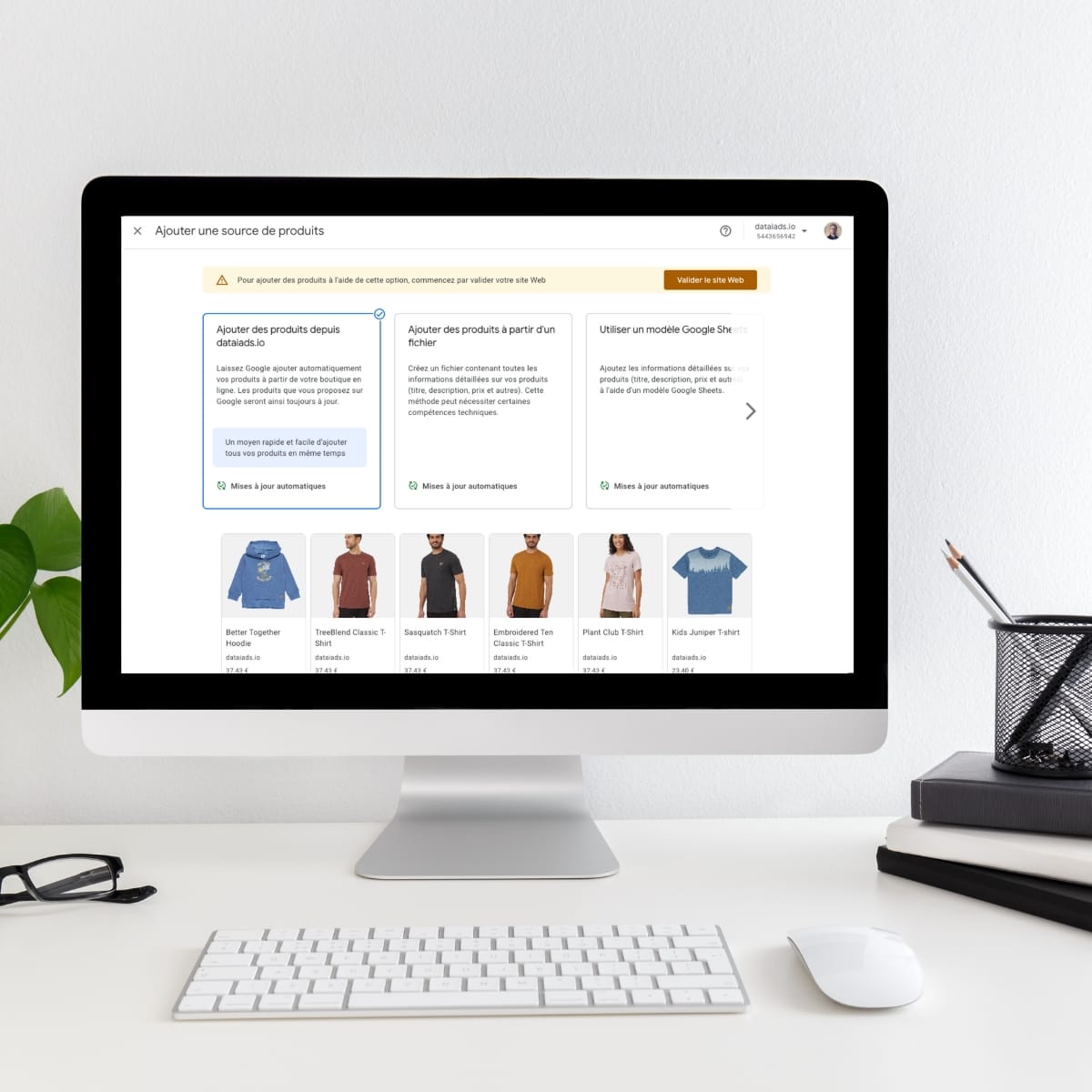
To do this, click on “Products” then “Feed” and finally “Add a feed”.
Then give your feed a name, choose your target country, and download your file.
There you go, your items are now ready to conquer Google Shopping! 🌐
👉 Also read: 10 valuable tips to optimize an e-commerce landing page quickly
Step 7: Create and segment your ads
Thanks to Google Pmax, you can precisely target users according to their interests and buying behaviors.
Admittedly, this step requires a bit of time, but the results are worth it.
Here’s how to do it:
• Analyze your products to identify their unique characteristics then create groups, by product or price categories for example.
• Create separate campaigns for each product segment using different bidding strategies. Then personalize ads for each segment for maximum effectiveness.
• Use advanced targeting options on Google Pmax to target specific groups and reach users interested in your ads. 💡 Look at the purchase history, interests, or browsing behaviors of your targets to create segments.
• Test and optimize continuously by conducting A/B tests on various segments and adjust your strategies based on the results to maximize conversions.
💡 Our best tip: create logical product groups, by popularity or category for example, based on Google audience data to maximize the impact of your campaigns and the visibility of best-sellers.
Step 8: Import product reviews
Product reviews play an essential role in increase customer trust and improve the conversion rate.
But how do you import them effectively into Google Shopping? 😏
• Collect customer reviews via reliable platforms or directly from your e-commerce site. So consider encouraging happy customers to leave detailed reviews about their experience.
• Automate collection with Customer Reviews. To do this, simply sign up for this program through your GMC account and then gather feedback after each purchase.
• After collection, Use Google’s customer review program or import them via data feed files 🌟
• Show reviews directly on Google Shopping ads and Google Pmax campaigns by configuring your settings. This builds credibility and encourages consumers to choose your products.
💡 Our best tip: make sure the Reviews are updated regularly and in accordance with Google policies for optimal visibility.
👉 Read also: 12 tips to optimize the conversion of Google Performance Max campaigns
Step 9: Update inventory information for catalog products
Nothing is more frustrating for a customer than clicking on a product that is out of stock!
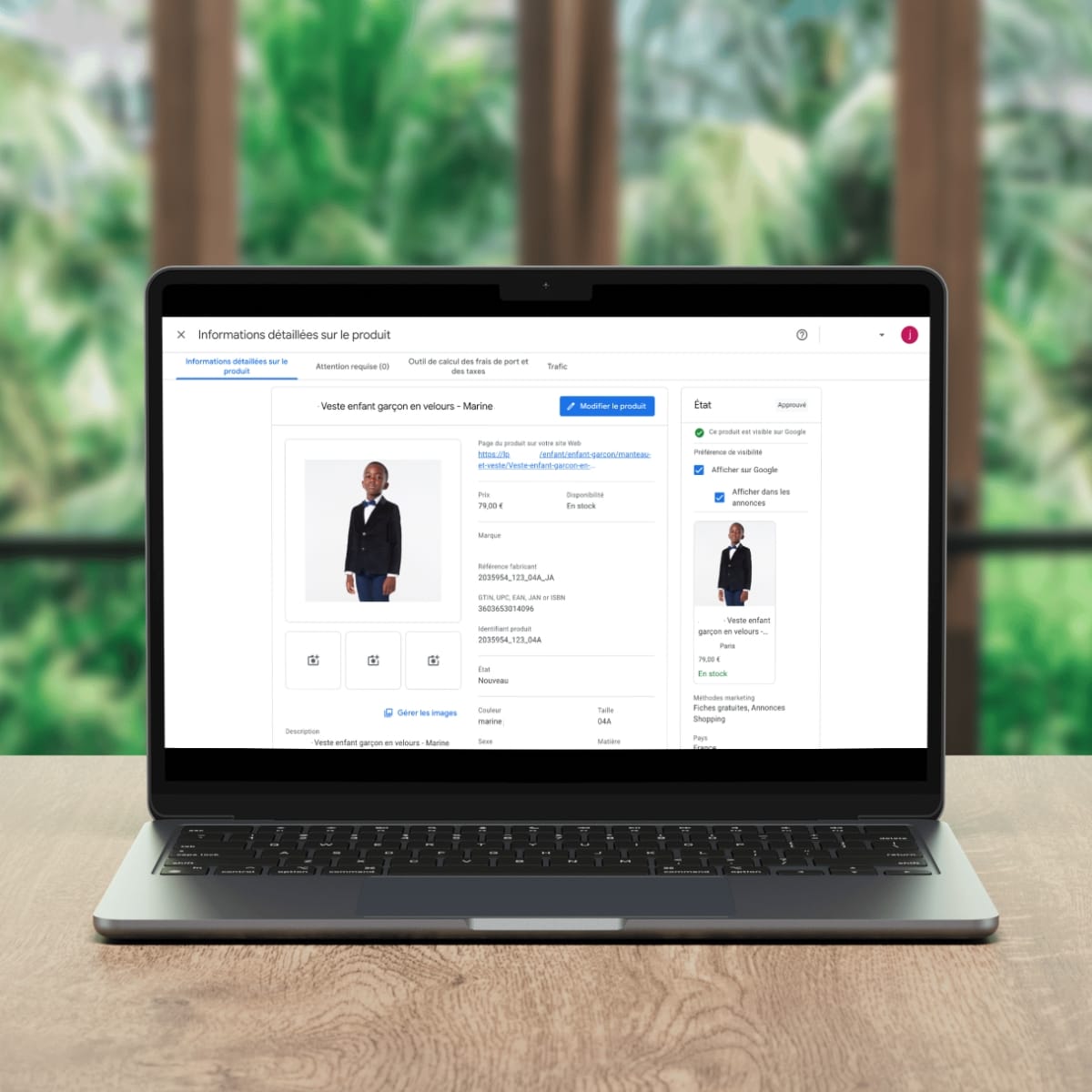
Fortunately, Google Performance Max Shopping makes it possible toAutomate the update of your inventory to reflect the availability of items in real time 😉
So remember to configure GMC to synchronize stock information with your e-commerce site:
• Automate inventory sync thanks to the data feeds of your online store.
• Use Google Content API to manage stock updates in real time from your site to GMC.
• Set up stock alerts that automatically inform you about products that are out of stock or have critical stock levels.
• Optimize inventory management by taking into account the seasons, promotions and trends then adjust your inventory accordingly.
Step 10: Ensure the continuous updating of the catalog
Updating your catalog is a bit like gardening: you need maintenance, otherwise it quickly becomes a jungle! 🌿
Take the time to regularly check your catalog for yourself ensure that all information is up to date and that your products remain attractive to buyers.
• Use the data flow management tools to automatically display essential GMC information: availability, description and price.
• Also maintain the up-to-date product attributes to reflect the latest news on your articles.
• Perform regular catalog audits to identify outdated or incorrect information and then make the necessary corrections.
• Test different optimization strategies by conducting A/B tests to determine the best combinations of titles + descriptions + images that generate the most conversions.
Last but not least, analyze and then continuously adjust attributes to maintain the attractiveness of your products and maximize your sales.
After all, constant improvement is the secret of champions 🏆
Even Google wasn’t built in a day (they had to reload their pages several times too)!
* * * * *
Congratulations, you are now armed with the 10 steps to put your product catalog on Google Shopping !
With a well-optimized flow, perfectly segmented ads and constant monitoring of your stocks, you now have all the cards in hand to propel your products onto the e-commerce scene. So, ready to dominate Google Shopping?
Remember, as with any good product, maintenance is key: Update your catalog regularly and adjust your strategy as needed.
Google Shopping is a bit like riding a bike, once you get on the pedal, everything goes! 🚲
[

](https://en.dataiads.io/ebooks/guide-ultime-comment-maximiser-votre-roi-sur-google-shopping)